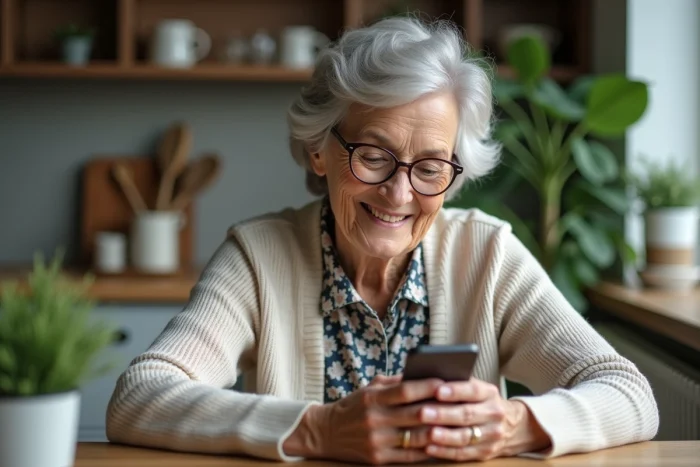
Some Doro phones, despite their reputation for simplicity, hold surprises when it comes to installing WhatsApp. Only models running Android, with access to the Play Store, open the door to messaging. On older devices, even the latest updates are not enough: WhatsApp remains out of reach. As for newer models, sometimes you have to roll up your sleeves to install the app yourself.
To create a WhatsApp account on a Doro, you need to gather three elements: a valid email address, a working phone number, and a reliable Internet connection. The interface is quite different from what you find on a standard smartphone, and getting used to it may involve some unexpected detours. Notifications work in their own way, depending on the phone’s settings.
WhatsApp on a Doro phone: what you need to know before getting started
Equipping yourself with a Doro means betting on simplicity, designed for seniors: clear interface, large buttons, compatibility with a range of hearing aids. However, not everyone enjoys the same possibilities; only Doro models running Android that have access to the Play Store allow for the installation of WhatsApp. To check, open the main menu and locate the Play Store icon.
Compatible models simplify access with a streamlined navigation, clear text, and adjusted notifications. The simplified mode, very common in Doro, enlarges the characters, highlights alerts, and makes menus more readable. A real bonus for those who see or hear less well.
Before going further, take the time to check a few essential points:
- Does the Doro model in use support WhatsApp?
- Is the Internet connection (wifi or mobile data) operational?
- Is a phone number available to activate messaging?
Installing WhatsApp on a Doro allows for varied exchanges with family: video calls, photo sharing, quick messages… For detailed advice and solutions tailored to each profile, the site using WhatsApp on a Doro phone offers a useful overview. These checks lay the groundwork for a relaxed usage, designed for those who expect concrete results and minimal complications.
How to easily install and configure WhatsApp on your Doro
The installation of WhatsApp on a Doro Android begins with an active Internet connection. Open the Google Play Store, search for “WhatsApp,” then select the correct app from the results. A couple of taps are enough to start the download and installation; the waiting time will depend on the speed of the connection.
The WhatsApp icon appears on the home screen. To configure the app, open it, accept the terms, and then enter the phone number. A code will be sent via SMS, which you need to enter to validate the activation. This verification protects access and reassures those concerned about their digital security.
To personalize your profile, add your name or a recent photo; you can use the built-in camera. WhatsApp, in its version on Doro, remains easy to use: some models even offer a simplified mode, useful for enlarging text and streamlining the conversation feed. This setting can be easily activated in the phone’s menu.
Remember to create shortcuts for quick access to your favorite contacts. Adjust the volume or notification mode according to your hearing comfort. Even during a conversation, the assistance button, a trademark of Doro, remains accessible to reach a loved one or request help, ensuring secure daily use. All these steps require minimal manipulation, so every senior can enjoy WhatsApp with confidence and without unnecessary detours.
Practical tips for communicating well with your loved ones daily
Once WhatsApp is launched on your Doro, exchanges take on a new dimension. Written messages circulate quickly, and video calls bring you closer, even from a distance. To enhance comfort, you can increase the font size directly in the phone settings, which makes reading easier.
To further familiarize yourself, here are a few points to test:
- Activate simplified mode for quicker access to conversations.
- Add family members as shortcuts on the home screen: one tap, and the exchange starts.
- Set a distinct ringtone to immediately identify important messages.
Privacy is respected with the encryption of exchanges, ensuring the confidentiality of discussions. For those equipped with a hearing aid, the alert volume can be adjusted, or you can choose the vibrator to avoid missing a notification. Switching from a voice call to a video call requires no complex manipulation: autonomy is maintained without needing to ask for help at every step.
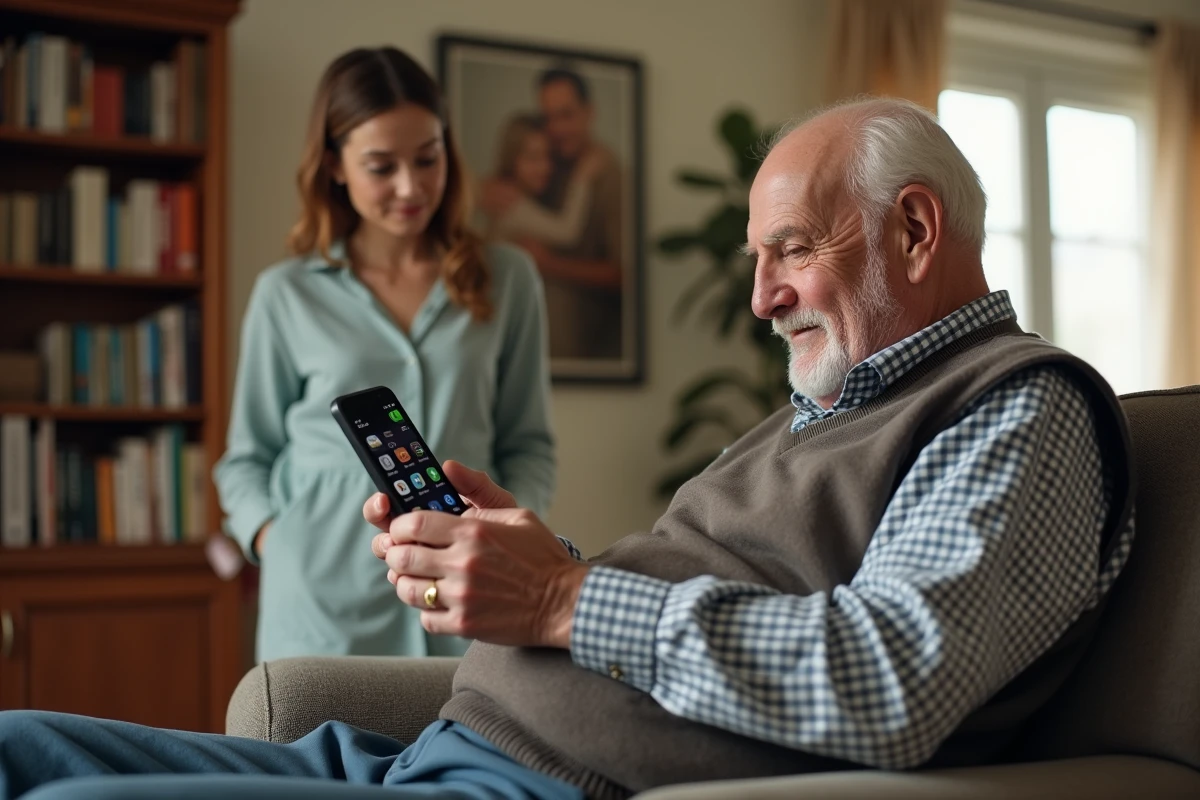
And if writing becomes too lengthy, the voice message proves to be remarkably effective. Loved ones, in case of doubt during the initial setup, can lend a hand: a timely assistance that smooths the experience and strengthens generational bonds. When well configured, a Doro transforms every conversation into a simple, warm moment, open to the family world.